
Contacts
Your address book: every person or company you deal with, along with their deals, tasks, and interaction history.
How to find a contact
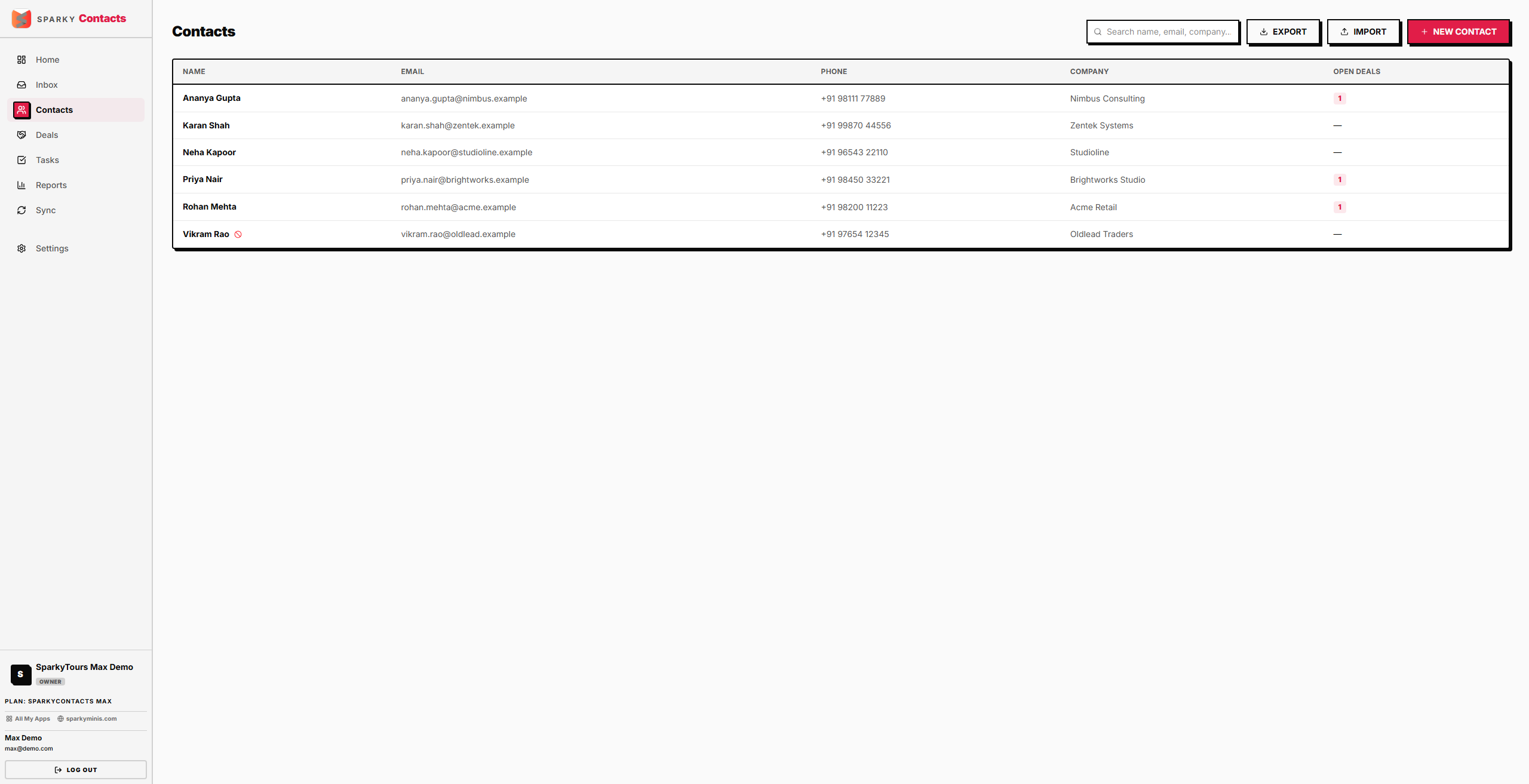
Open Contacts from the sidebar. Use the search box to filter by name, email, or company — results update as you type and show the 200 most recently updated matches.
How to export your contacts
From the Contacts list, click "Export" to download every contact as a CSV file — unlike the on-screen list, the export isn't capped at 200 rows, so it always includes everyone.
How to add a contact
Click "Add contact" from the Contacts list. Only Name is required — email, phone, and company are optional. Saving takes you straight to the new contact's detail page.
If your organization has reached its plan's contact limit, you'll see an upgrade prompt instead.
How to import contacts
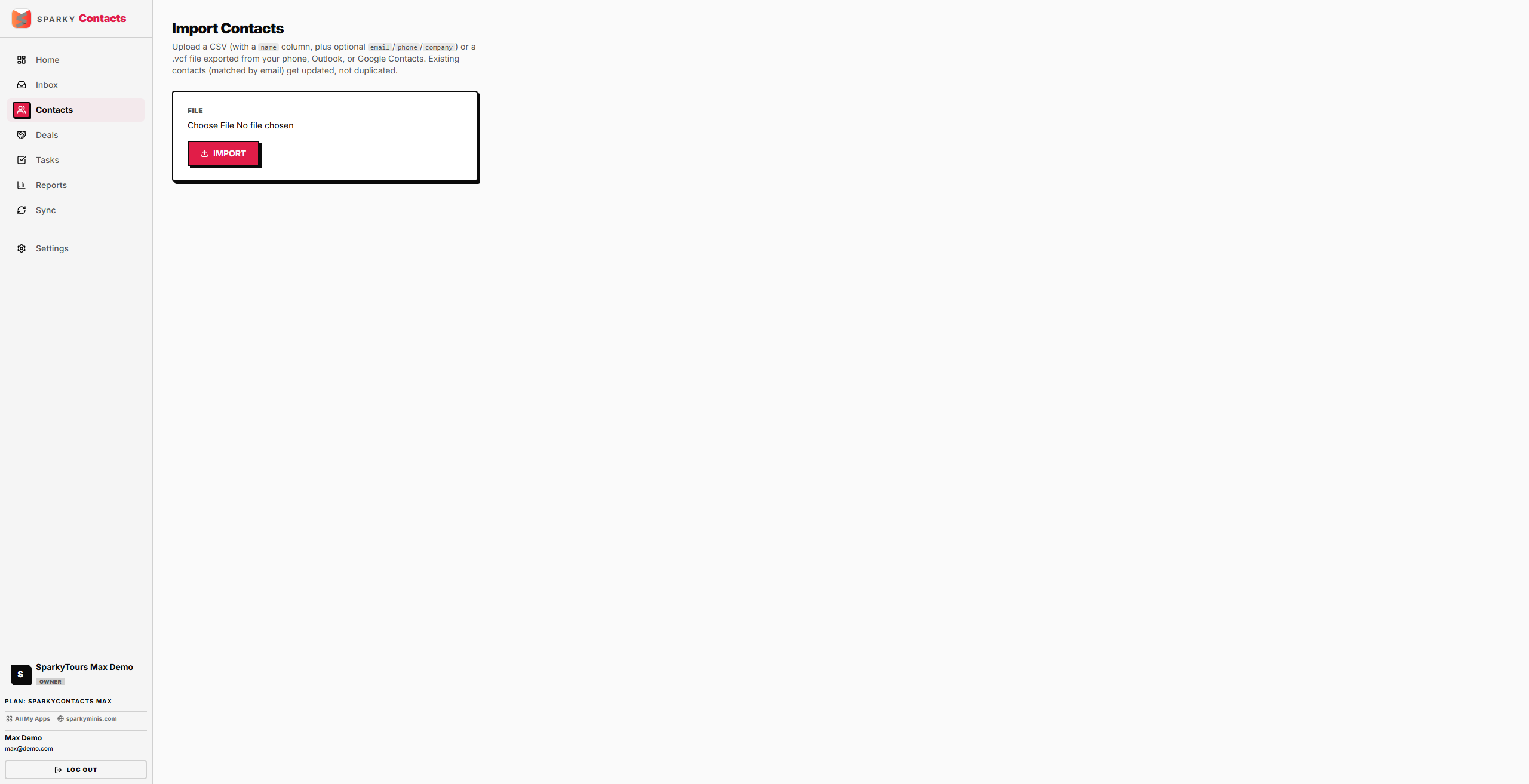
Open Contacts, then "Import." Upload a CSV or VCF file. Rows without a name are skipped. If an imported contact's email matches someone already in your contacts, that existing contact is updated rather than duplicated — their name is replaced and their phone/company are filled in only if the import provided them. If the import would push you over your plan's contact limit, it's blocked before anything is saved.
How to view or edit a contact
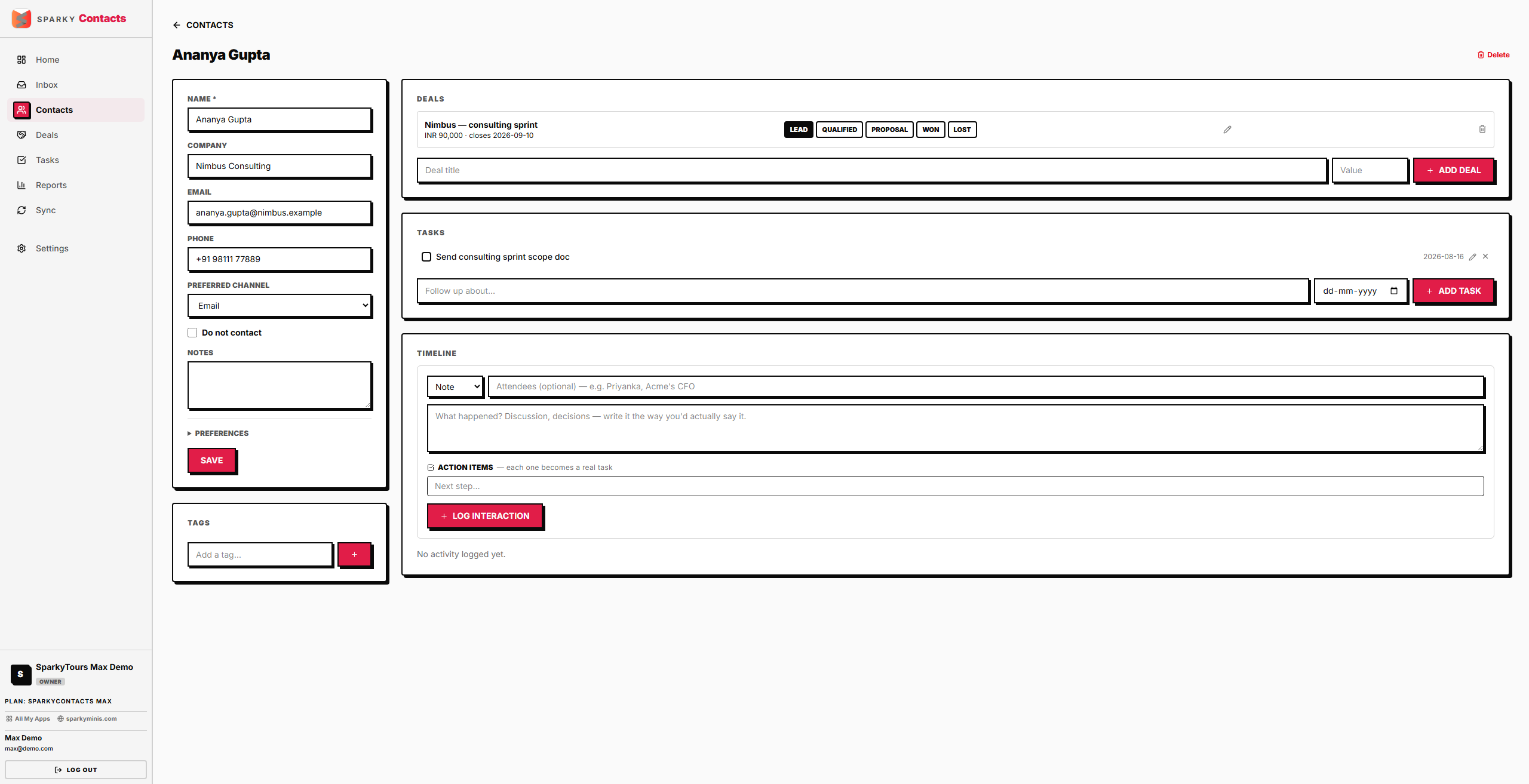
Click a contact from the list to open their detail page. If you have edit permission, every field is editable: name, email, phone, company, preferred contact channel, do-not-contact flag, language, source, currency, timezone, billing address, tax ID, payment terms, website, job title, and notes. Name is the only required field.
How to delete a contact
From a contact's detail page, choose Delete, then confirm — deleting can't be undone. This removes the contact record and takes you back to the Contacts list.
How to tag a contact
From a contact's detail page, add a tag by typing its name — if your organization already has a tag with that name, it's reused; otherwise a new one is created. Removing a tag from a contact only unlinks it; the tag itself stays available for other contacts.
How to log a call, meeting, or note
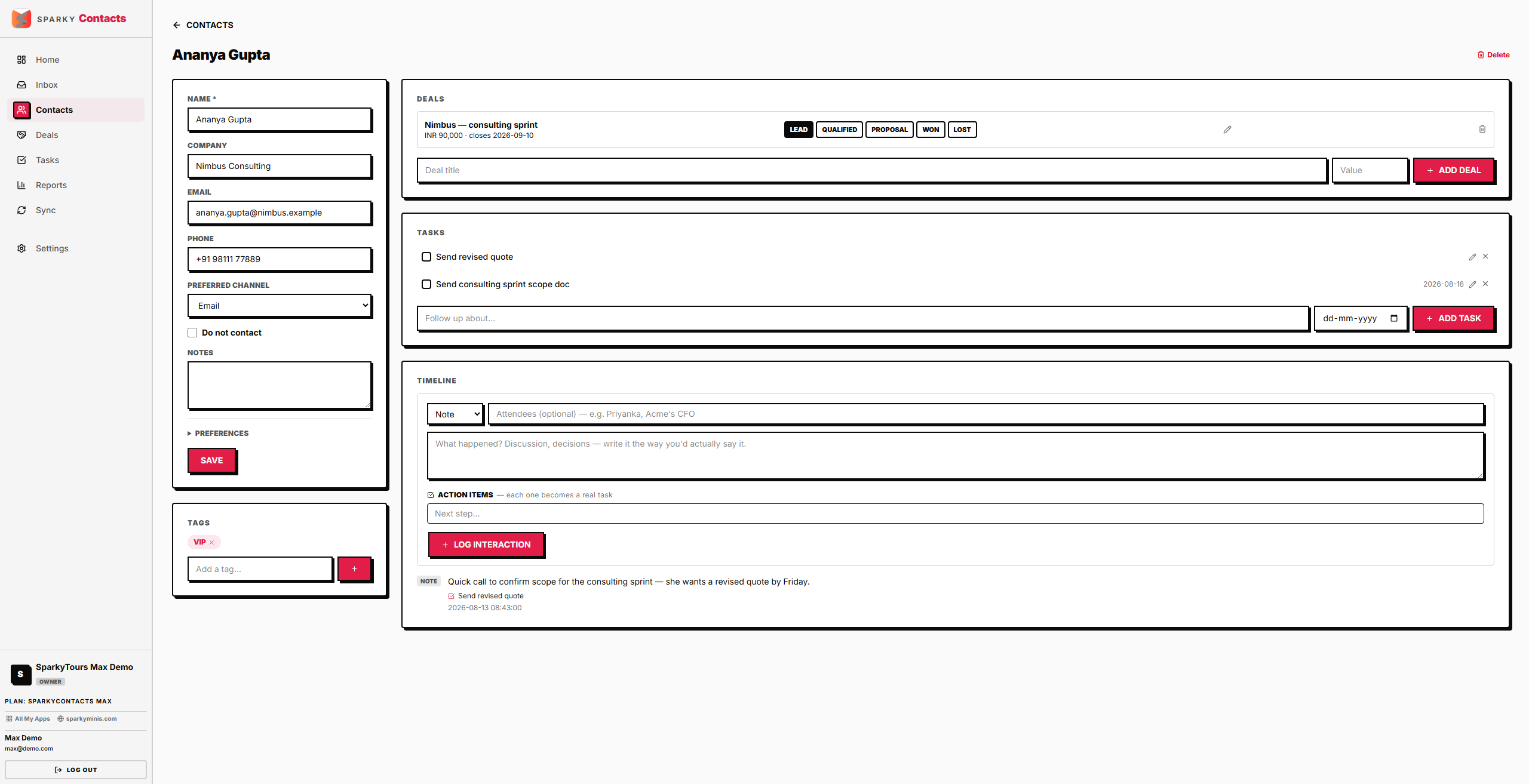
From a contact's detail page, log an interaction. Enter the details in the body text (required), and optionally list who attended. You can also add one or more follow-up items in the same form — each one becomes a real task assigned to you, so you don't need a separate step to turn a meeting note into to-dos.
How to add, edit, or remove a task on a contact
From a contact's detail page, add a task (title required), edit an existing one, or remove one. Mark tasks done or not done with a single click.
How to add or edit a deal on a contact
From a contact's detail page, add a deal (title required) — it starts in your organization's default currency, and you can edit the value, currency, and expected close date afterward. Delete a deal the same way.
How to move a deal's stage
From either a contact's detail page or the Deals page, drag or select a deal into a new stage. Moving a deal into a stage marked "Won" or "Lost" (configured in Settings → Deal Stages) automatically records when it closed; moving it to any other stage clears that.