Settings
Organization-wide configuration: your business profile, team, plan, deal stages, storage connection, and inbox setup. Each row on the Settings menu only appears if you have permission to use it.
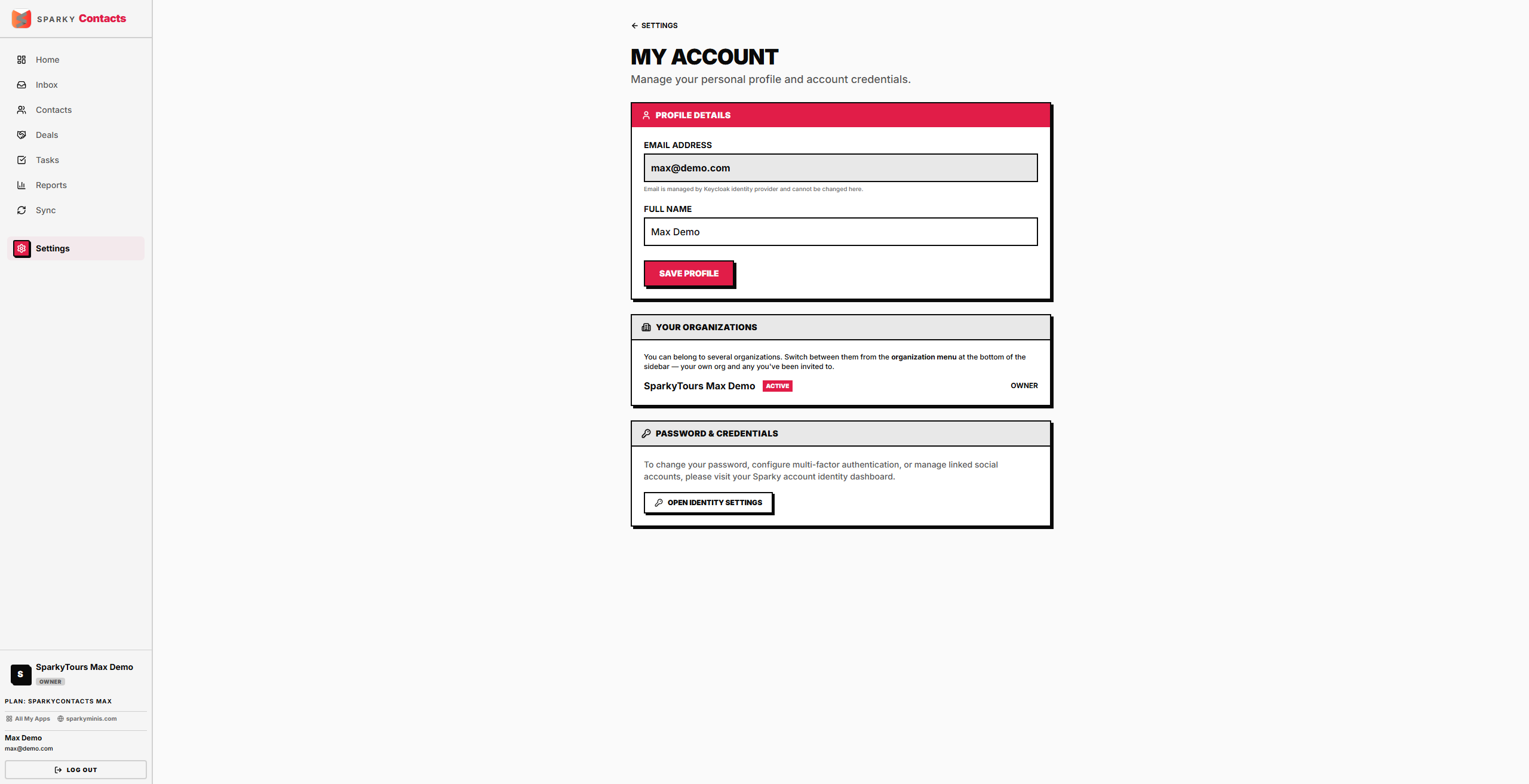
How to update your personal account name
Open Settings → Account. This also lists every organization you belong to and which one is currently active.
How to update your organization's business profile
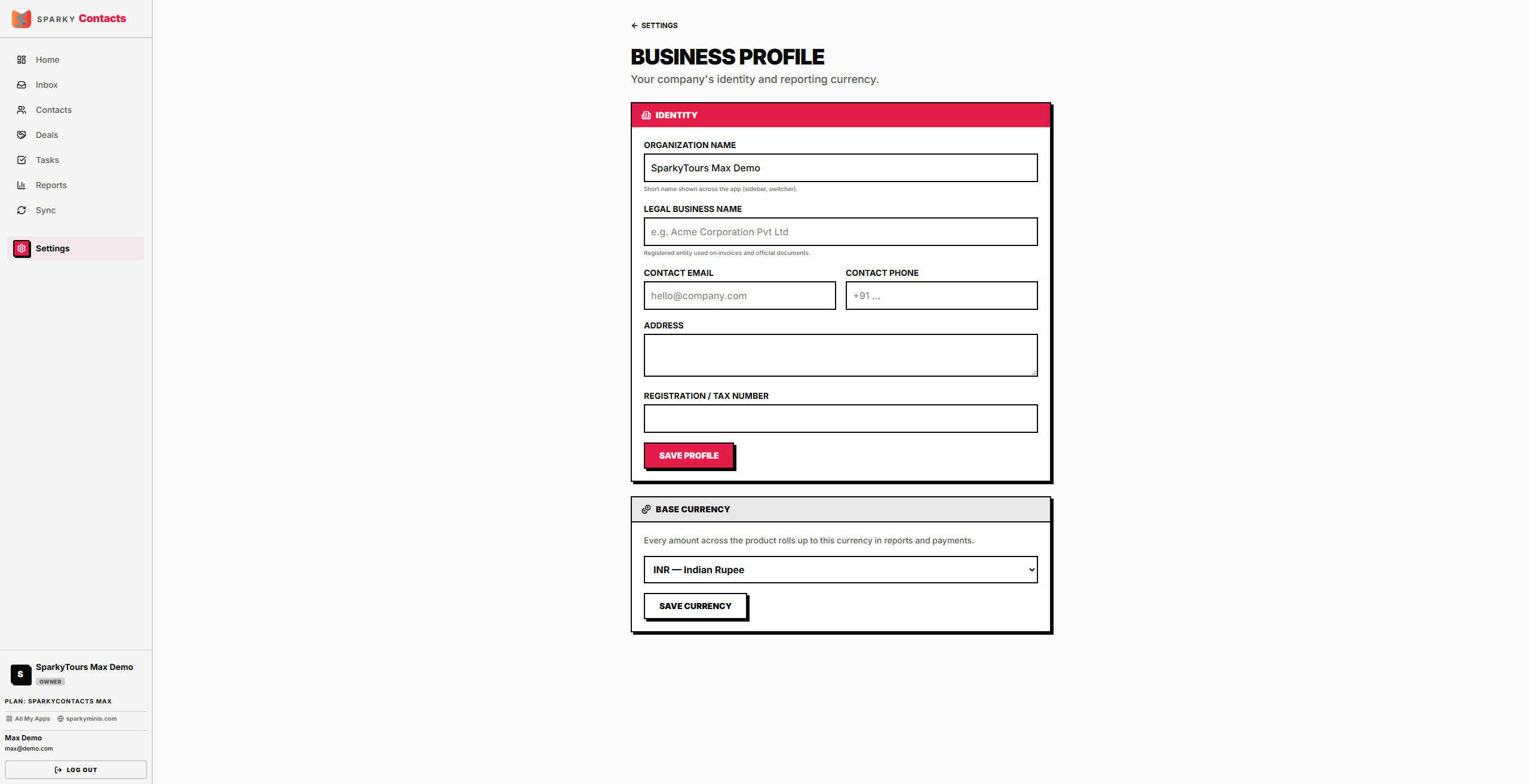
Open Settings → Business. Fields: display name (required), legal name, contact email/phone, address, and registration number.
How to change your organization's currency
Same Business settings page — pick from the list of supported currencies.
How to view or change your plan
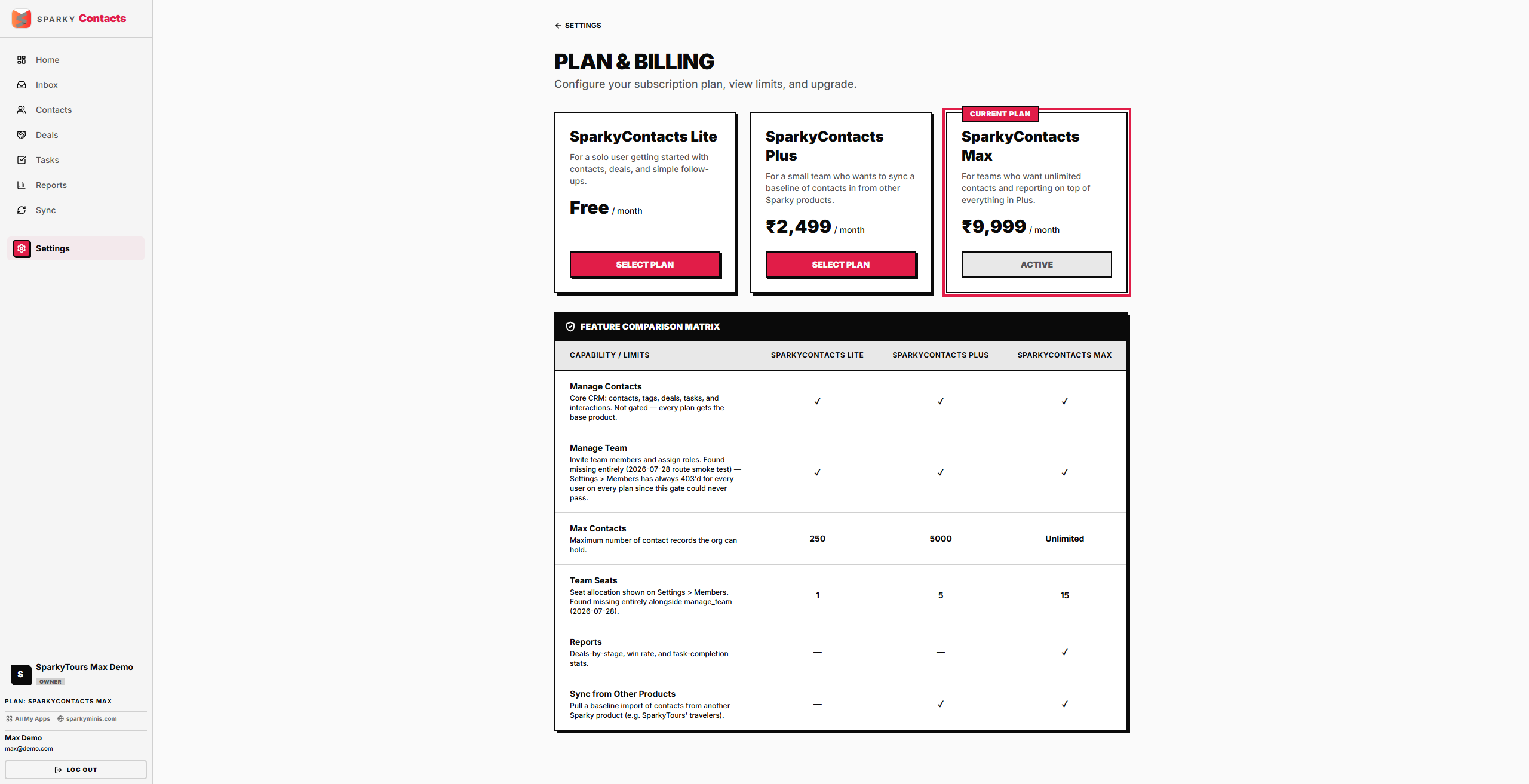
Open Settings → Billing. Upgrading, or choosing a plan for the first time, applies instantly. Any change to something cheaper than your current plan — a downgrade, or cancelling down to the free plan — is never instant: it submits a request that SparkyMinis staff review, and if approved it takes effect at the end of your current billing period, not right away. Only one pending change request is allowed at a time.
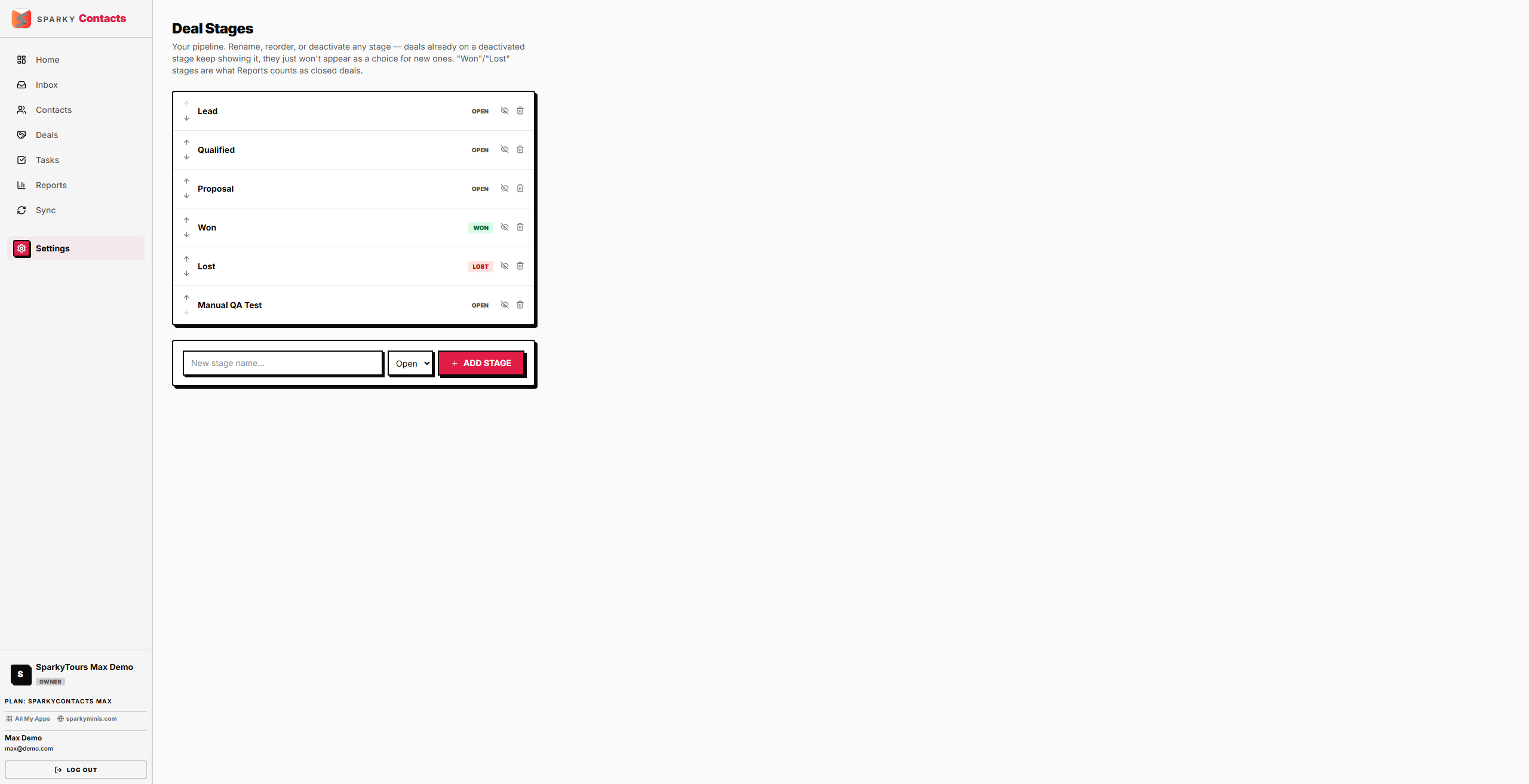
How to manage deal stages
Open Settings → Deal Stages. Add a stage (with a label and a type — open, won, or lost), rename a stage, change its type, reorder it, or activate/deactivate it. Deleting an unused stage asks you to confirm first, since it can't be undone. A stage currently used by any deal can't be deleted — deactivate it instead so historical deals keep their label.
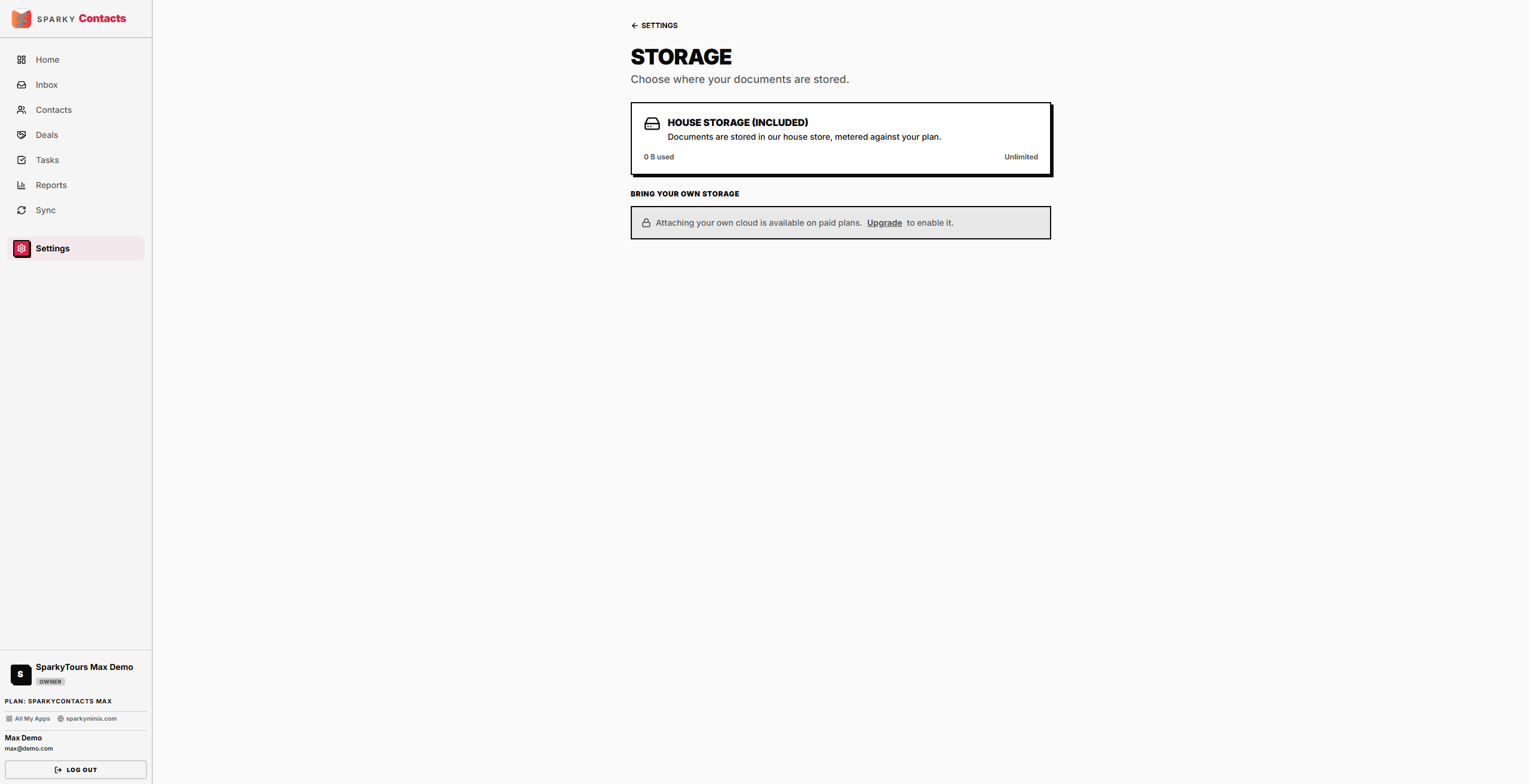
How to connect document storage
Open Settings → Storage. Connecting takes you through your provider's sign-in and authorization flow (Google Drive by default); disconnecting is immediate.
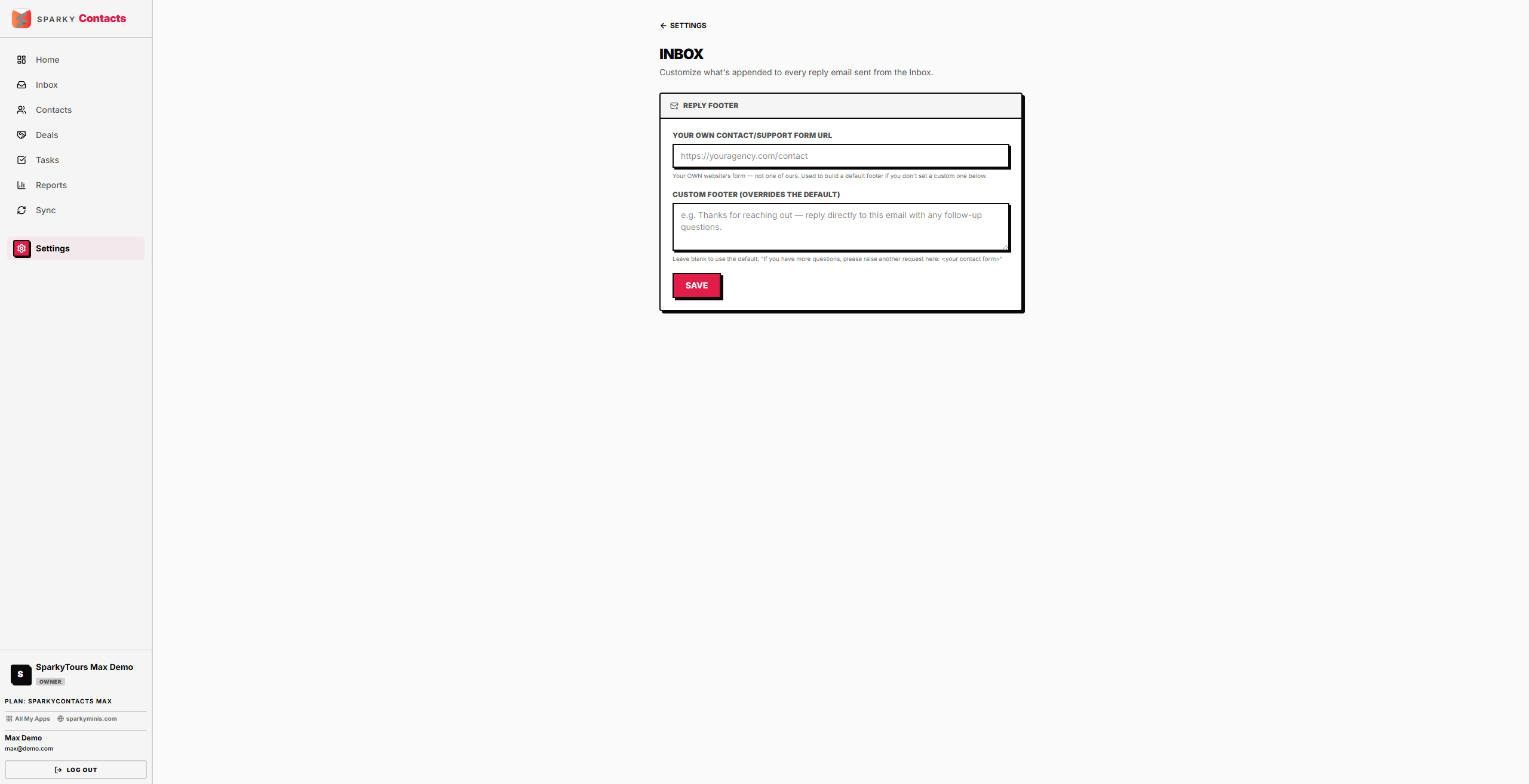
How to manage inbox (support) settings
Open Settings → Inbox. Set a reply footer that's appended to outgoing ticket replies, and a contact-form URL.
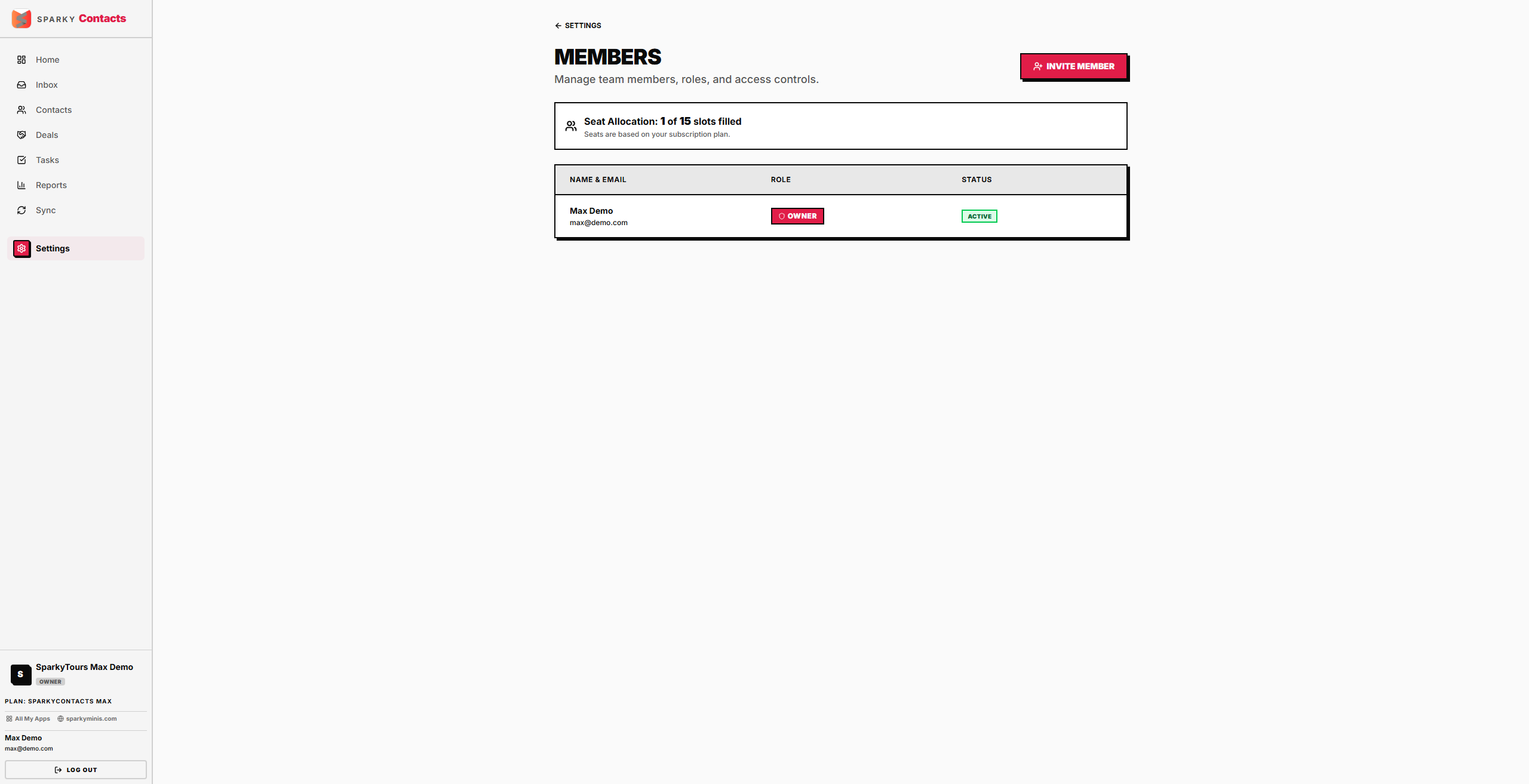
How to manage team members
Open Settings → Members.
- Invite someone — enter their email and role. Blocked if it would exceed your plan's seat limit (counting both active members and people already invited). They get an email invite.
- Revoke a pending invite — the invitee is notified by email.
- Change a member's role — the organization owner's role can never be changed.
- Remove a member — the owner can never be removed. Removing someone deactivates their membership rather than deleting it outright, and they're notified by email.
How to accept or decline an organization invitation
Open Settings → Invitations — this shows invites sent to your email address across any organization, not just this one. Accepting an invite doesn't automatically switch you into that organization; switch manually from the org menu afterward.